To make a WhatsApp Business account, download the free WhatsApp Business app on your Android or iPhone. Then register your business phone number with the 6-digit code sent by SMS or call, and build your business profile. It usually takes 10 to 15 minutes and needs a number that is not already on another WhatsApp app.
At a glance
- The WhatsApp Business app is free to download on Android and iPhone (Footprint Digital).
- The official setup order is: download and launch, register, allow access to Contacts and Photos, restore a previous account if needed, then build your business profile.
- WhatsApp Business is a separate app from normal WhatsApp.
- Verification uses a 6-digit code sent by SMS or phone call.
- After registering, the official onboarding guide recommends setting up greeting and away messages, quick replies and labels to organise your inbox.
- Last checked: 6 November 2026. WhatsApp changes features from time to time, so check the official pages before you start.
What do you need before you make a WhatsApp Business account?
You need a smartphone, a phone number that can receive an SMS or call, and your basic business details. Setup takes about 10 to 15 minutes and the app itself is free.
A phone number that can receive the code
This can be a mobile or a landline, as long as it can receive the 6-digit verification code by SMS or phone call. The number must not already be in use on another WhatsApp app, which we cover in the same-number section below.
Your business details
Have these to hand so you can fill everything in one go:
- Business name and category
- Opening hours
- Address
- Website
Back up and decide who owns the phone
If you plan to reuse a number that currently has personal WhatsApp on it, back up your chats first. It is also worth deciding now which member of the team will look after the phone, so messages do not sit unread when that person is away.
How do you make a WhatsApp Business account step by step?
Download the Business app, register your number, allow access, restore a previous account if asked, then build your profile. Here is each step in order, following the official WhatsApp Business guide.
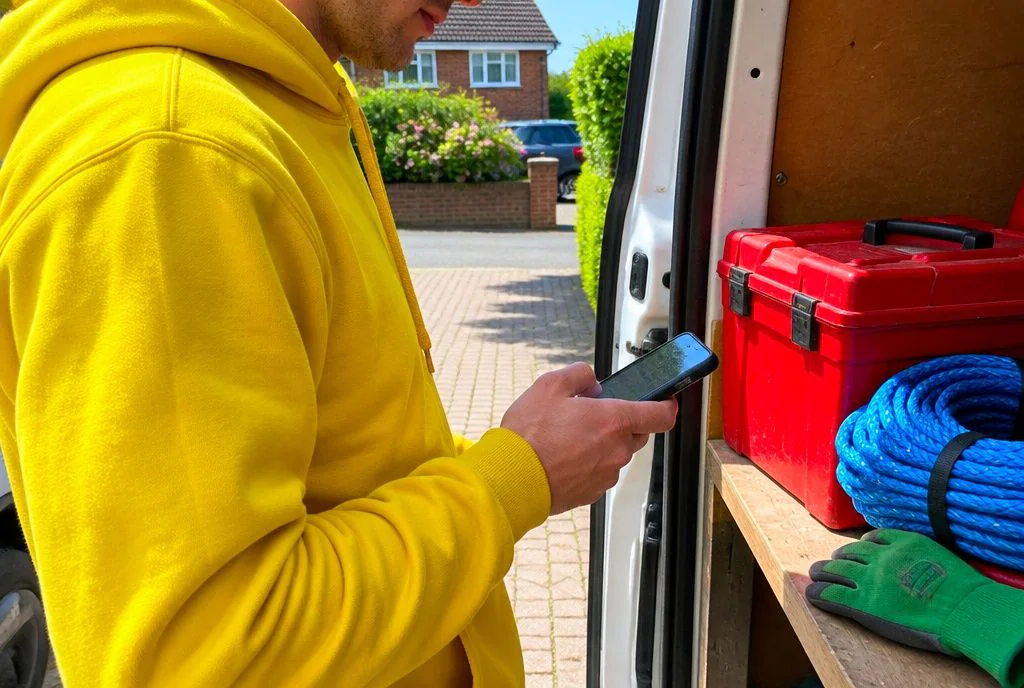
- Download WhatsApp Business. It is a separate app from normal WhatsApp. Get it from Google Play on Android or the App Store on iPhone. Open it once it has installed.
- Register your number. Accept the terms and enter your business number. WhatsApp then sends a 6-digit code by SMS or phone call. Type it in to verify.
- Allow access. Give the app access to your Contacts and Photos when it asks. This lets you message customers you already know and add images to your profile.
- Restore if prompted. If the app finds a previous account or backup on that number, choose whether to restore it.
- Add your business name and category. Enter the name customers will see and pick the category that fits best. Then move on to the full profile.
How do you set up your WhatsApp Business profile?
Your profile should show who you are and how to reach you: name, category, description, hours, address, website and email. Customers see this before they send a first message, so it is worth getting right.
Fill every field customers see
Leave nothing blank if you can help it. A short description in plain words, such as what you do and the area you cover, does more than a slogan.
Add a logo
Use your logo as the profile photo so customers can recognise you straight away.
Add a UK address and opening hours
Enter your full business address with postcode and set your opening hours. For those working from a van or visiting customers at home, add the area you cover in the description instead.
Use the catalogue
Customers can browse your products or services inside the chat with the catalogue. A dental practice might list check-ups, and a trades firm might list the jobs it takes on.
Can I use WhatsApp and WhatsApp Business on the same number?
No. The two apps cannot run on the same number at once. You do have other options, set out below.

| Option | Possible? |
|---|---|
| Same number on both apps at once | No |
| Different numbers on each app | Yes |
| WhatsApp Business on linked devices | Yes |
| Move your personal account to Business on the same number | Yes |
Before you move a number across, back up your chats.
For most small firms, the tidiest route is a separate business SIM or a landline. It keeps personal and work messages apart and means the number can pass to someone else if staff change.
How can I turn my WhatsApp account into a business account?
Back up your chats, install WhatsApp Business, register the same number and restore your history. The number then moves to the Business app.
Be aware that this replaces the personal app on that number. You will not be able to use normal WhatsApp on it afterwards.
Check your backup first
Before you register, open your current chat backup settings and confirm a recent backup exists. Then restore it when the Business app offers to.
If the code does not arrive
Wait for the timer to finish, then ask for the code by phone call instead of SMS. Check you typed the number correctly and that your phone has signal. A landline will need the call option.
What are greeting messages, quick replies and the 24-hour rule?
Greeting and away messages and quick replies save you time. The 24-hour rule limits when a business can send free-form replies to someone who has messaged it.
Greeting, away messages and quick replies
The official onboarding guide recommends setting these up after you register, along with labels to organise your inbox.
- Greeting message: sent automatically when a customer first messages you.
- Away message: sent outside your opening hours, so people know when to expect a reply.
- Quick replies: saved answers you call up with a shortcut, handy for opening times, parking or how to book.
- Labels: tags such as new customer or awaiting payment.
The 24-hour customer service window
When a customer messages you, a window opens in which you can reply freely. Once it closes, you cannot send ordinary messages to that person until they write again.
Templates
To message someone outside that window, a business uses pre-approved templates. These belong to the paid WhatsApp Business Platform rather than the free app. WhatsApp updates its rules from time to time, so check the current terms on the WhatsApp Business pages before you rely on them.
What is the difference between the WhatsApp Business app and the API?
The app is free and suits one small team on a phone. The Business Platform (API) is for larger volumes, multiple agents and automation, and is paid for through a provider.
| Business app | Business Platform (API) | |
|---|---|---|
| Cost | Free to download | Paid, through a provider |
| Users | One small team on a phone | Multiple agents |
| Automation | Greeting, away messages and quick replies | Fuller automation |
| Templates | Not the main focus | Used for messages outside the 24-hour window |
We have not listed prices here because they vary by provider. Ask providers for a current quote.
Who each suits
A small dental practice or a trades firm with a handful of enquiries a day will usually be fine on the free app. A business with several people answering the same inbox, or one that wants automation, will probably need the API.
What should you do when WhatsApp enquiries start to pile up?
When messages outgrow one phone, answer common questions automatically from your own website content and hand tricky chats to a person. That keeps customers waiting less and frees your team for real conversations.

This is where Chati can help. Chati is an AI chatbot that answers customers from your own website, shows its sources and hands the chat to your human team when it is unsure. It also handles lead capture and bookings, and carries your branding. You can see how it works or read our industry guides for dentists, solicitors, trades and more.
An honest note
Chati’s website chatbot is a separate tool from the WhatsApp app. It sits alongside WhatsApp rather than replacing it, taking the repeat questions from your website so your WhatsApp inbox stays manageable.
Why businesses choose Chati
We have been developing apps since 2009. Chati is trained on your own data with custom integration, and customers choose us for great value for money. Our pricing page has the details.
If your enquiries are growing and you would like to talk it through, contact Chati and we will help you work out what suits your business.
Frequently asked questions
Is WhatsApp Business really free?
The WhatsApp Business app is free to download on Android and iPhone. The Business Platform (API) is paid for through a provider.
Can I use a landline number for WhatsApp Business?
Yes, as long as the number can receive the 6-digit verification code. Choose the phone call option when asked, because a landline cannot receive an SMS.
Can several staff use one WhatsApp Business account?
The app can be used on linked devices, so more than one person can see the same chats. For larger teams with many agents, the Business Platform is the usual route.
Will I lose my chats if I switch to WhatsApp Business?
Not if you back up first. Create a backup of your current chats, then restore it when the Business app offers to.
Do I need a website to make a WhatsApp Business account?
No. A website is one of the profile fields you can fill in, but you can set up the account without one.
How do customers find my WhatsApp Business number?
They need your number, so share it where customers already look: your website, email signature, social profiles and printed materials. Your business profile then shows them who you are once they open the chat.
Is WhatsApp Business GDPR compliant for UK businesses?
We cannot give legal advice here. UK businesses remain responsible for how they handle customer data, so check WhatsApp’s current terms and the ICO’s guidance, or ask a data protection adviser.